By Gerry Delval
If you find your smart phone daunting, you are not alone. I often have conversations with other VRMNC members about our individual experiences regarding using smart phone features, or apps, and I find that some use their smart phone only as a portable telephone. The most common reason given is that it is too complicated or too much trouble to figure out how to use the smart phone apps. But there are many useful and easy to use features and apps with a smart phone.
I am not a computer nerd but rather a former business owner who needed to have electronic tools that allowed my wife Christine and me to be away from the office for extended periods of time with “office in the pocket” technology that would allow us to work on non-routine matters that our staff were not trained to handle on their own. Fortunately, a few younger people in our lives were able to get us going.
These new How To iPhone articles in the VRMNC Newsletter are intended to share our experience on how we use our smart phones. While these articles will focus around the iPhone and gmail, much will apply to other phone brands and service providers. Additionally, downloadable apps operate the same on all phone brands.
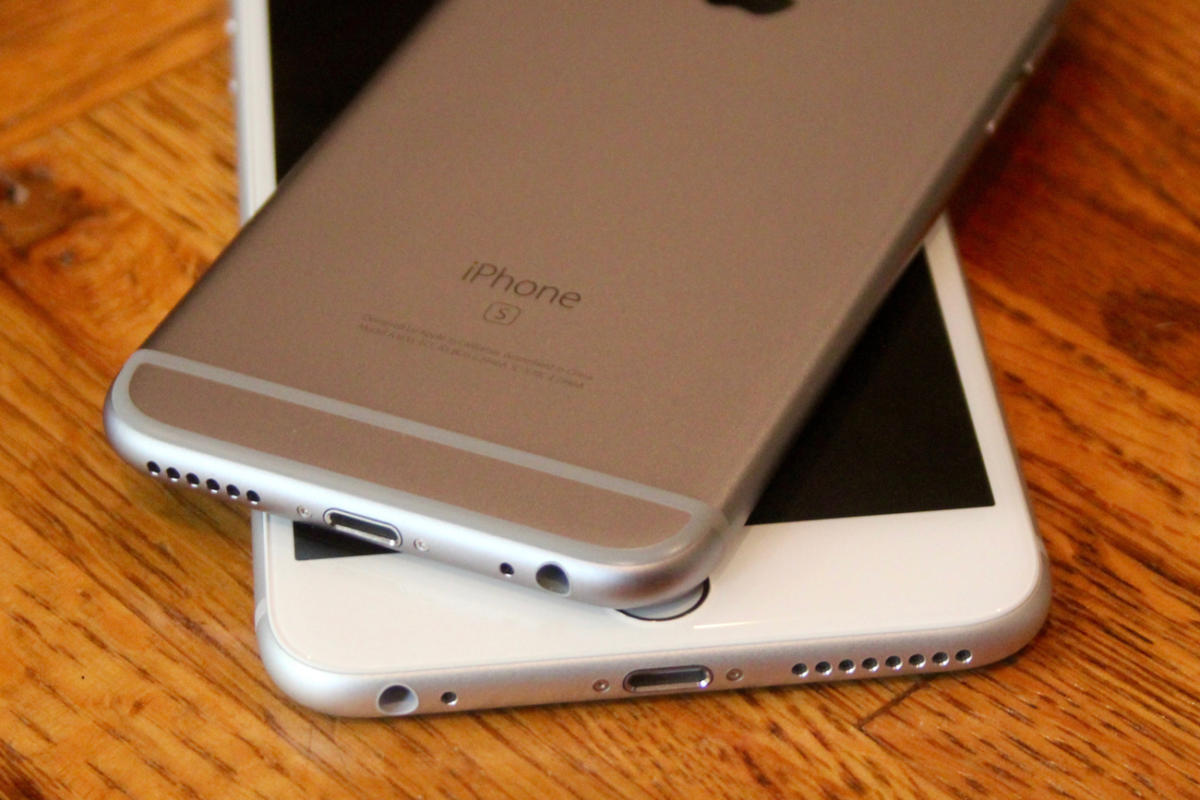
In our household, we no longer have a land line. Instead, we have 3 Apple iPhones – 2 are 5s units and 1 is a 6s. One is mine, one is Christine’s and the third is our European phone with a SIM card from the French telecommunication giant Orange. This Orange phone provides unlimited calls all over Europe and Canada as well as offering 100 GB (yes giga bytes) of data, a necessity for our extended travels in our motor home in Europe each year – unfortunately cancelled by Covid this year. Our email provider is Google. Our phones are synchronized with each other and with our desktop and laptop computers. What this means is that whatever we do on any one device is available on all devices.
For us, we use our iPhones for a multitude of tasks:
- To make and receive telephone calls.
- To manage our contact list and keep it up-to-date.
- To read and compose emails.
- As a personal GPS.
- To make weekly video conference calls on WhatsApp with our grandchildren in Switzerland.
- To maintain an active grocery list in real time.
- To store and retrieve all our favourite recipes.
- To take photographs and automatically save them in a single central time and location stamped repository.
- To deposit cheques into our bank account.
- To make secure touchless credit card payments.
- And for various other tasks.
So, let’s get right into it.
Synchronizing your iPhone to your email account
Today, I would expect that all smart phones are synched to an email account at the time of purchase. If you are seeing your emails on your phone, your email messages are already synched. But, that is not all that should be synched. You need to verify that the other key account features are also synched or you will not be able to use your phone to its fullest. Here is what you do:
- On the main screen, tap the Settings
- Scroll down to Passwords and Accounts and tap.
- Under Accounts, tap on your name or on the name that was given to your phone.
- The account line will confirm your email address.
- Below your email address, you will see 4 lines: Mail, Contacts, Calendars, Notes. Make sure that all four buttons to the right are green, indicating that these 4 functions are turned on. If any button is grey, tap it to turn it green.
What you have just done is to synch your email messages, your contacts, your calendar and your notes between your home computer and your smart phone. From this moment on, any change that you make to emails, to your contacts, to your calendar and to your notes either on your iPhone or on your computer will be automatically available on the other device.
Adding an account on your iPhone
You can add another email account on your iPhone. As I wrote above, our three iPhones are synched. Our three phones have both of our email accounts. This means that, while we have individual email accounts, I can see Christine’s activities on my phone and she can see mine on her phone. If we had secrets between us, it could be embarassing, but since we have no secrets, it is really very convenient. So, for instance, say that I am at the dentist and I am scheduling my next appointment, I can see not only my future commitments but also Christine’s and I can make a better judgement for my next appointment based on the nature of whatever commitments that both of us have already made. Also, when we are in Europe, we use the Orange iPhone and we automatically have seamless access to all our emails, contacts, calendars and notes, among other things.
To add another account, the procedure is quite similar to the above:
- On the main screen, tap the Settings
- Scroll down to Passwords and Accounts and tap.
- Below Accounts, tap on Add Account.
- Select the service provider by name that corresponds with the other account or select other and enter the full email address. Verify the spelling before proceeding.
- Follow the prompts.
- Make sure that all four buttons to the right of Mail, Contacts, Calendars, Note are green.
What you have just done is to synch two email accounts to your iPhone. You still only have one phone number but you now have two separate sets of email messages that synch with your two individual email accounts; you can share your separate contact lists; you can share your calendars that you can colour code to identify which entry corresponds with which account (we will deal with that aspect in a later article); and you can share notes (which will be covered also later). Note that the first account is the main account on this phone.
If you repeat this procedure on another iPhone, those two iPhones will synch with your computer and with each other as well. If in addition you have a laptop, it will of course automatically be synched as well.
You now have an excellent base from which to better use your iPhone(s). In the next article, we will look at managing contacts in this synchronized environment.
If you have any questions or issues with this article, please email me at gerry.delval@gmail.com.